Home/MeetScribe/User Guide

User guide

Capture better notes with less effort.

MeetScribe records your meetings, transcribes them with AI, and saves transcript and audio straight to the Zoho CRM record — in one click. This guide walks through every step with examples.

10Languages supported
5–15sTo transcribe after Stop
25 minRecommended max per recording
Any browserChrome, Edge, Firefox, Safari, Brave

What it does

One-click meeting recorder, built into Zoho CRM.

Press record on any Lead, Contact, or Deal — speak naturally — click Stop and an AI-generated transcript appears within seconds. Review it, click Save, and the transcript and audio file land directly on the CRM record.
Before you start

System requirements.

  • Any modern browser — Chrome, Edge, Firefox, Safari, or Brave.
  • A working microphone.
  • Internet connection.
  • Zoho CRM Professional edition or higher.
  • MeetScribe enabled for your profile (admin setting).

Recording flow

From record to saved transcript.

Six steps with real screenshots from inside Zoho CRM.

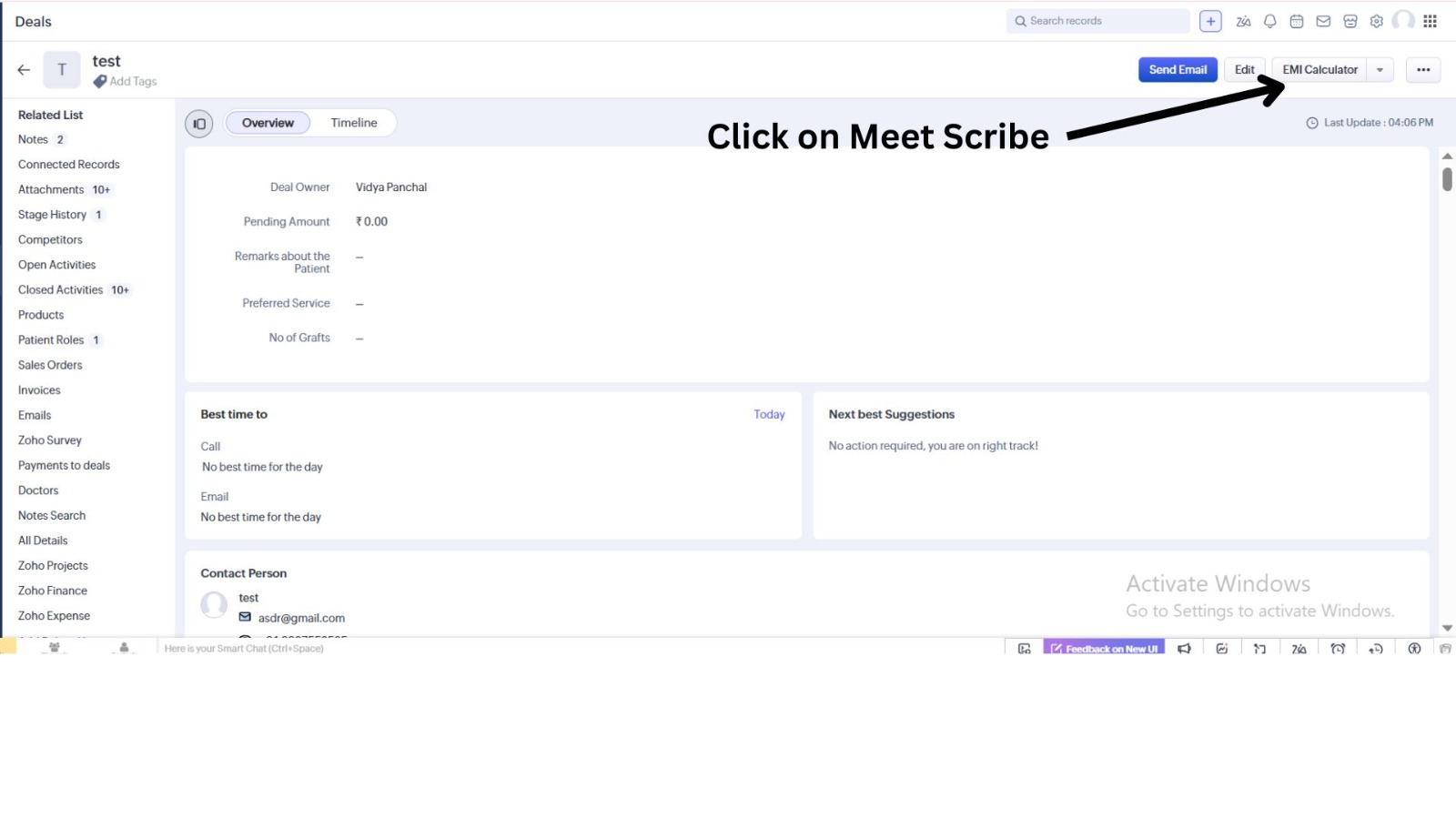
Zoho CRM Deal record page with arrow pointing to the dropdown next to the action button — labelled 'Click on Meet Scribe'
Open a Lead, Contact, or Deal — find the action dropdown
1

Open the CRM record

Navigate to any Lead, Contact, or Deal in Zoho CRM. In the top-right action area, click the small dropdown arrow next to your action button to see all linked tools.

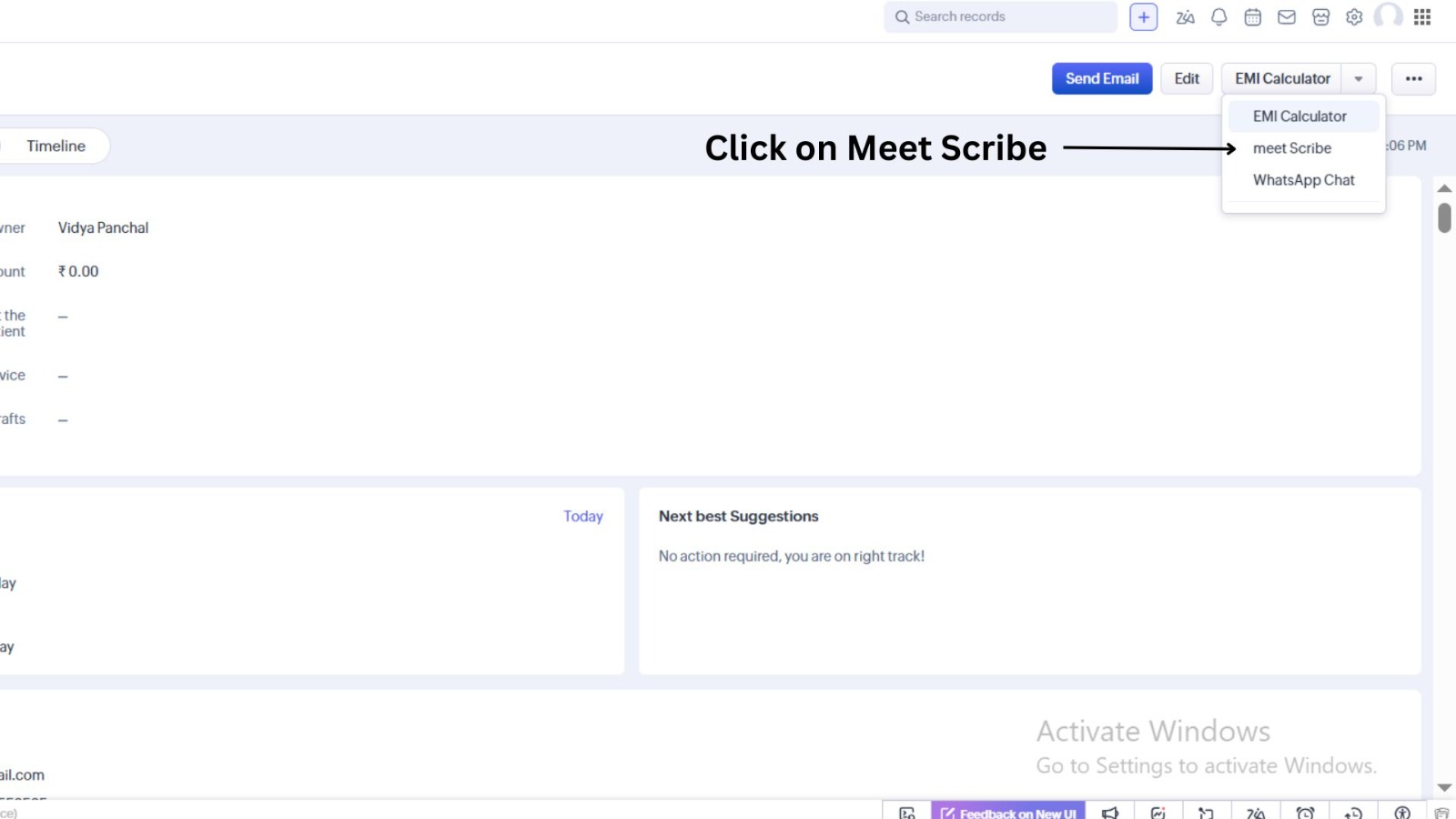
Dropdown menu opened showing 'EMI Calculator', 'meet Scribe', and 'WhatsApp Chat' — arrow pointing to 'meet Scribe'
Pick meet Scribe from the dropdown
2

Click meet Scribe

Select meet Scribe from the dropdown. The MeetScribe widget opens directly inside the record — no app switching, no new tab.

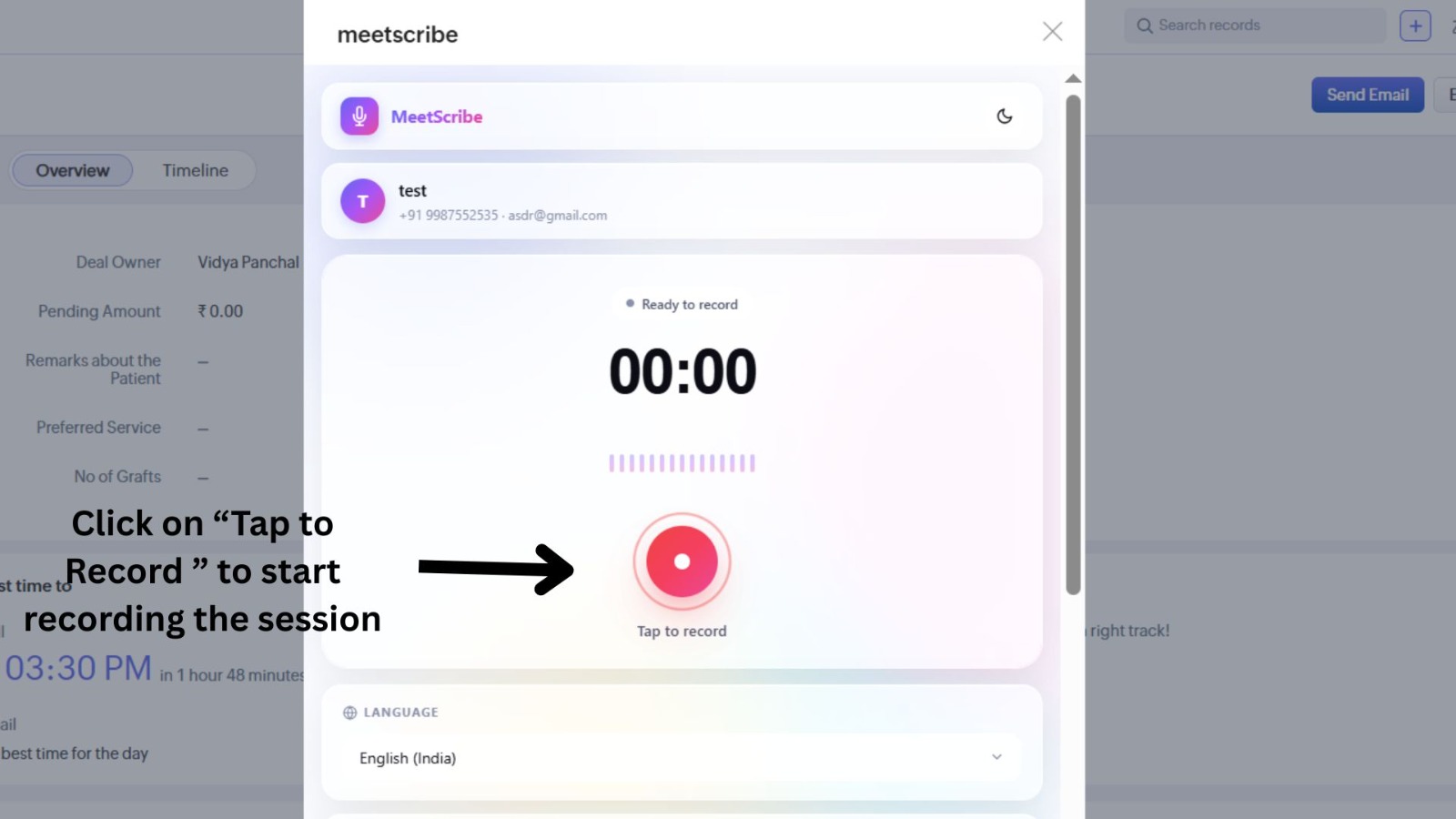
MeetScribe widget showing the linked record, a large red 'Tap to record' button, timer at 00:00, and a Language dropdown set to English (India)
Pick your language, then tap the red record button
3

Pick a language and tap to record

The widget confirms which record the recording will save to. Pick your language from the dropdown — 10 supported including Hindi, Tamil, Telugu, Kannada, Malayalam, Marathi, Gujarati, and Bengali — then tap the red Tap to record button.

Your browser will ask for microphone access the first time — click Allow. After that, recording starts instantly.

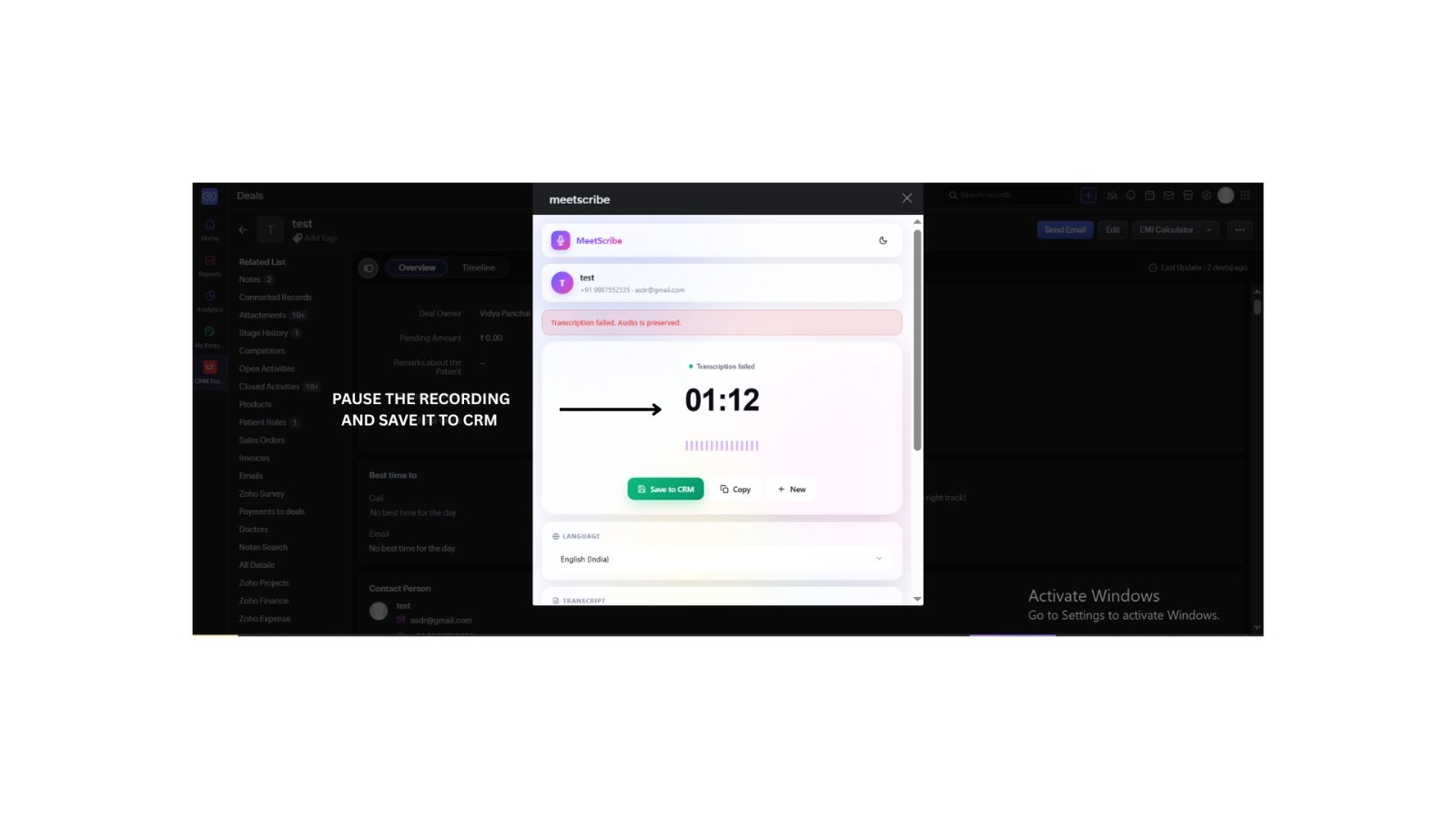
MeetScribe widget after stopping, showing timer at 01:12 and three buttons: Save to CRM, Copy, and New — arrow labelled 'Pause the recording and save it to CRM'
After Stop, review and click Save to CRM
4

Stop and save to CRM

When the conversation ends, click Stop. The AI transcribes in 5–15 seconds. Review the result, then choose:

  • Save to CRM — writes the transcript to the MeetScribe Transcript field and attaches the audio file
  • Copy — copies the transcript to your clipboard
  • New — discards and starts fresh
Audio is always preserved

Even if transcription fails for any reason, your audio recording is saved to the record as an attachment. Nothing is lost.

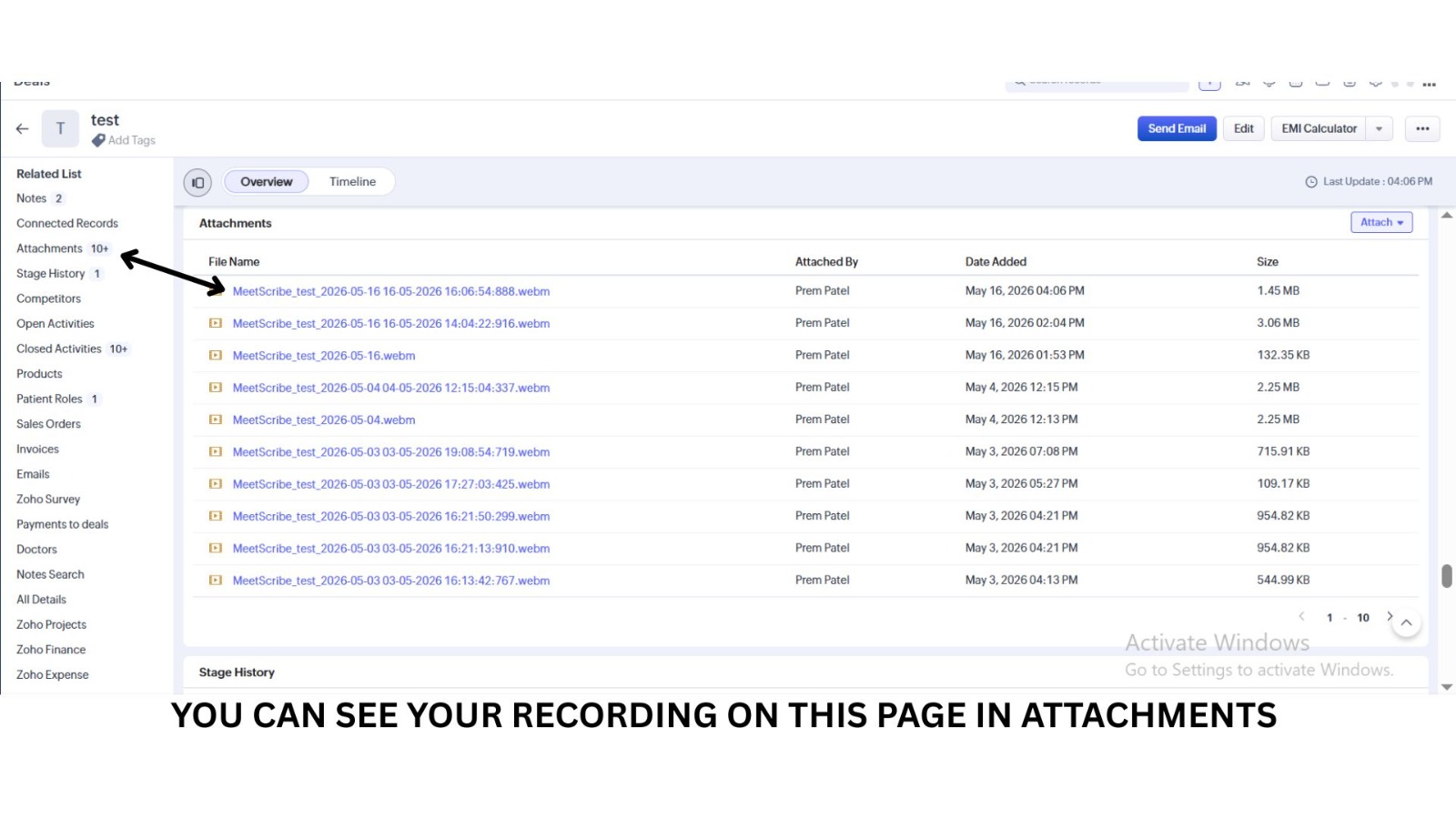
Zoho CRM Attachments related list showing multiple MeetScribe .webm audio recordings with timestamps, file sizes, and dates
Audio file lands in the record's Attachments list
5

Your audio is saved as an attachment

Click Attachments in the Related List to see every MeetScribe recording for this record. Each file is named with the record name and timestamp — easy to find later, easy to download, easy to replay.

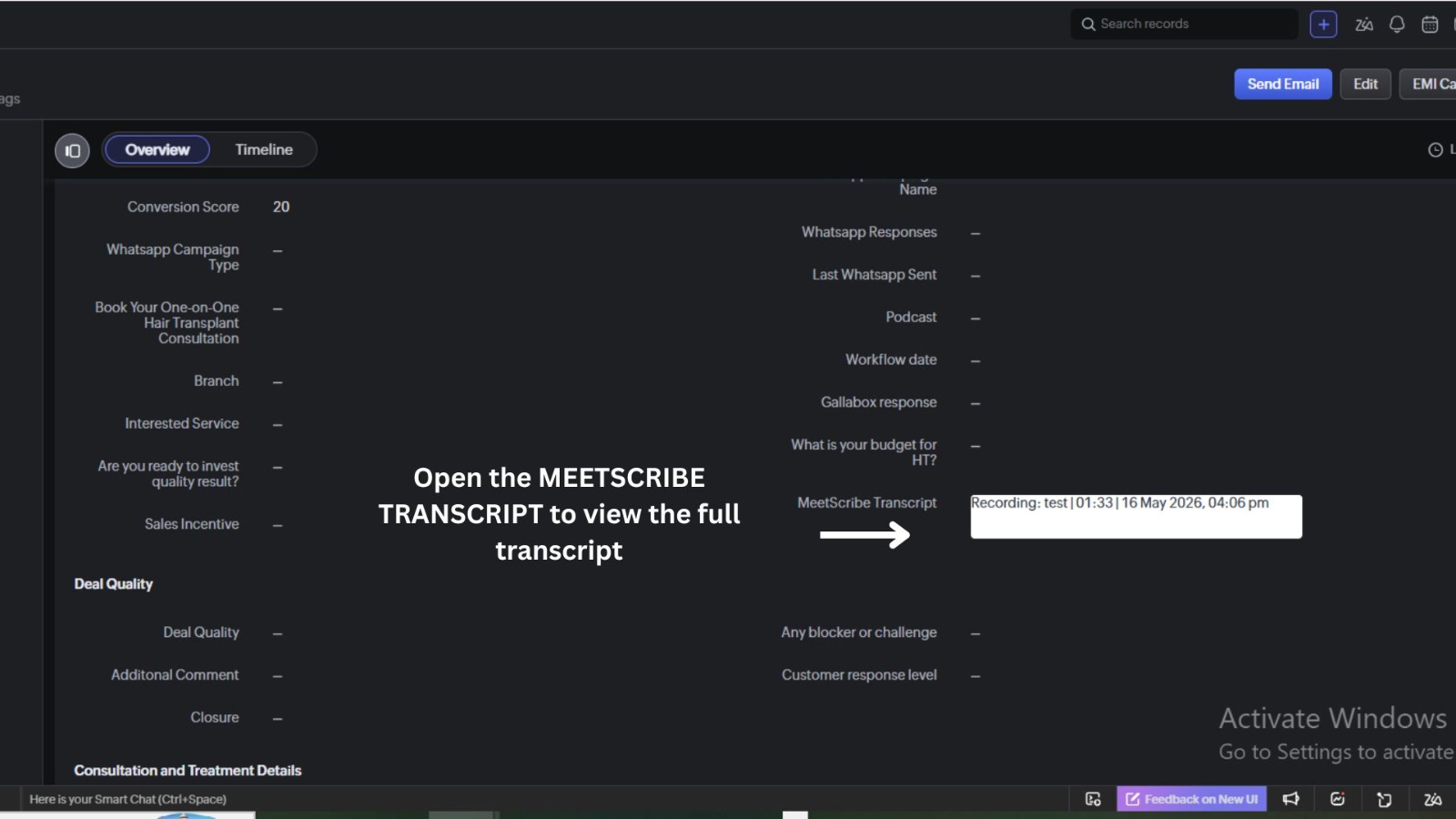
Zoho CRM record detail showing the 'MeetScribe Transcript' field populated with 'Recording: test | 01:33 | 16 May 2026, 04:06 pm'
Transcript appears in the MeetScribe Transcript field
6

Transcript lands in the CRM field

Open the MeetScribe Transcript field on the record to view the full transcript inline. It's a regular Zoho CRM text field — fully searchable, included in reports, exports, and workflow triggers.

  • Search every conversation for keywords across leads and deals
  • Build views and reports filtered by transcript content
  • Trigger workflows on transcript updates

What gets saved

Transcript on the record. Audio as attachment.

Everything stays linked to the right contact. No copy-pasting, no orphaned files. The transcript is fully searchable inside Zoho CRM and exports with the rest of your record data.

MeetScribe Transcript field

Custom long-text field added to Leads, Contacts, and Deals — fully searchable and exportable.

Audio attachment

The original recording is attached to the same record so you can always replay or re-transcribe.

Workflow-ready

Trigger automations on transcript updates — assign tasks, send WhatsApp follow-ups, notify managers.

Privacy & data handling

Your conversations stay yours.

Audio is sent over secure HTTPS to our transcription service, processed in seconds, and discarded immediately — never stored on our servers. Only the transcript and audio file are saved, and they go directly into your Zoho CRM. No analytics, no tracking, no resale.

Best accuracy

Small habits make cleaner transcripts.

Speak clearly at a natural pace

No need to slow down artificially. The AI handles natural speech well.

Reduce background noise

Use a quiet room or a noise-cancelling headset for noisy environments.

Match the language dropdown

Set it to the primary language being spoken. Use English for Hinglish conversations.

Keep recordings under 25 minutes

For longer meetings, stop and start a new recording.

Verbally tag key moments

Saying "next step — schedule consultation" gives you a searchable anchor.

Recap at the end

A 30-second summary gives you a clean "what we agreed" paragraph.

Need help?

Email info@the3amideas.com — we respond within 24 business hours. Or check the FAQ for quick answers.

Open FAQ